
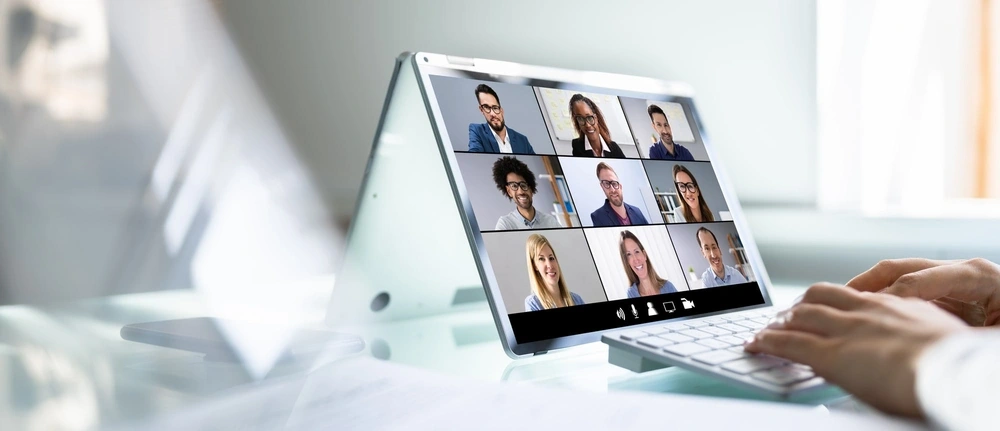
Video conferencing is now part of everyday work. Whether you’re joining a Microsoft Teams meeting, catching up with colleagues on Zoom, speaking to clients through Google Meet or working remotely, having the right laptop can make those calls much easier.
And while almost every modern laptop has a webcam and microphone, that doesn’t necessarily mean every laptop is equally good for video meetings.
A good video-conferencing laptop needs to handle your meeting software while you’re simultaneously working in documents, browsing the web, sharing your screen and responding to messages. Camera quality, microphones, speakers, battery life, connectivity and display quality all matter too.
With so many laptops available, choosing the right one can get confusing. So, we’ve narrowed things down to four laptop ranges that are particularly well suited to video calls, remote work and business meetings.

1. Best Overall: HP EliteBook
If video conferencing is a regular part of your working day, the HP EliteBook range is one of our favourite all-round choices.
EliteBooks are business-focused laptops, which makes them particularly well suited to professionals who spend their days moving between email, documents, browser tabs and online meetings. The range includes compact models for users who travel frequently as well as larger-screen options for people who prefer more room for presentations and multitasking.
Another benefit of choosing a business-class laptop is that features such as connectivity, security and portability tend to receive more attention than they do on basic consumer notebooks. Depending on the model you choose, current EliteBooks can also offer Windows 11 Pro, modern processors, high-resolution displays and longer business warranties.
For someone who wants one laptop to handle their normal workday as well as frequent Teams, Zoom and Google Meet calls, the EliteBook range is an excellent place to start.
2. Best Value: Acer Aspire
You don’t necessarily need an expensive business laptop just to have a good video conferencing experience.
The Acer Aspire range offers plenty of practical options for home workers, students, small businesses and anyone who needs an affordable everyday laptop that can comfortably handle online meetings.
Current Aspire models cover a wide range of processors, memory configurations and screen sizes, which makes it easier to find something that fits your budget without paying for performance you don’t actually need.
For regular calls, we’d generally favour a model with at least 8GB of RAM, an SSD and a Full HD or better display. If you frequently keep several applications open while you’re in a meeting, moving up to 16GB of RAM is even better.
The Aspire range is particularly appealing if you want a capable all-round laptop for browsing, Office applications, studying, streaming and video conferencing without stepping into premium business-laptop pricing.
3. Best for Portability: Acer TravelMate
If your meetings don’t always happen from the same desk, the Acer TravelMate range is worth a serious look.
TravelMate laptops are designed with business and mobile users in mind, and the current range includes several compact 14-inch models as well as larger options. Some configurations also include features such as Windows 11 Pro, LTE connectivity and extended onsite warranties. PC International
That makes the range particularly useful for professionals who move between home, the office, clients and other locations during the working week.
A 14-inch laptop is often a great middle ground for video conferencing because it gives you enough screen space to comfortably see other participants and shared content while still being easy to carry around.
If flexibility and portability matter just as much as performance, TravelMate is one of the strongest business-focused ranges to consider.
4. Best Premium Option: ASUS Zenbook
If you’re looking for something more premium, the ASUS Zenbook range combines portability, performance and excellent display options.
The current Zenbook range includes modern 14-inch and 16-inch models, with configurations offering OLED displays, high-resolution screens, touch support and newer AI-focused processors. PC International
A premium display can be particularly useful if your day involves more than simply seeing the other people on a call. Screen sharing, presentations, spreadsheets and side-by-side windows are all easier to work with when you have a clear, high-quality panel.
Zenbooks are also well suited to professionals who want something thin and portable without sacrificing the performance needed for heavier multitasking.
If your laptop is going to be both your everyday work machine and your main video-conferencing device, the Zenbook range offers a great balance between professional performance and premium design.
A Buyer’s Guide to Choosing the Best Laptop for Video Conferencing
Poor audio, a blurry image or a laptop that starts struggling as soon as you share your screen can make even a short online meeting frustrating.
Luckily, you don’t need an extremely powerful laptop for video conferencing. What matters is choosing a balanced machine with the right camera, microphone, display, memory and connectivity for the way you work.
Camera
The webcam is one of the first things to consider.
A 1080p webcam is a great target for a new business laptop, particularly if you spend a lot of time speaking to clients or colleagues. However, resolution isn’t the only thing that affects image quality. Lighting, camera processing and positioning can make just as much difference.
If you already have a laptop you’re happy with but its built-in camera isn’t great, you don’t necessarily need to replace the entire computer. An external webcam can be a relatively inexpensive way to dramatically improve your setup.
Microphone
Being heard clearly is every bit as important as being seen clearly.
Most laptops include built-in microphones, but the quality can vary considerably. Business laptops often include multiple microphones and software designed to reduce background noise.
If you regularly work in a busy office, shared space or noisy home environment, a dedicated headset with a microphone can provide clearer audio and reduce the amount of background sound reaching everyone else on the call.
Speakers
Built-in laptop speakers are perfectly suitable for many meetings, particularly when you’re working somewhere quiet.
However, they aren’t always ideal in noisy environments or when privacy matters. A headset or headphones can make it easier to hear speech clearly without turning your laptop volume all the way up.
RAM
Video conferencing itself doesn’t require an enormous amount of memory, but your meeting application is rarely the only thing you’ll have open.
You may be running your browser, Microsoft Office, email, messaging applications and a presentation while simultaneously sharing your screen.
For a new laptop, 8GB of RAM is workable for basic use, but 16GB is our preferred starting point for regular business multitasking. Professionals running heavier applications alongside meetings may benefit from 32GB.
Processor
You don’t need the most powerful processor available simply to join a video call.
A modern Intel Core 5 or Core i5, AMD Ryzen 5, or similar processor is more than capable for most users. Higher-end Core Ultra, Core 7, Ryzen 7 and similar processors become more useful when you’re combining calls with demanding workloads, large spreadsheets, content creation or many applications running simultaneously.
The important thing is to buy for your whole workload, rather than choosing a processor based only on Zoom or Teams.
Display
A Full HD or 1920 × 1200-class display is a sensible target for a work laptop.
Higher-resolution displays can make text and shared presentations look sharper, but screen size matters too. A 14-inch laptop is excellent for portability, while a 15.6- or 16-inch model gives you more room for split-screen work and large meetings.
The best choice depends on whether your laptop spends most of its time on a desk or travelling with you.
Internet Connectivity
Even the best laptop can’t compensate for an unstable internet connection.
Modern Wi-Fi standards can help when they’re paired with a good router and network connection. Business laptops may also offer Ethernet directly or through a USB-C adapter or docking station, which can be useful for a permanent office setup.
If video calls regularly break up or freeze, check your internet connection before assuming the laptop is the problem.
Battery Life
Video calls can use more battery than basic document editing because your screen, camera, microphone, processor and wireless connection are all working continuously.
If you’re frequently in meetings away from a power outlet, battery life should be high on your priority list.
USB-C charging can also make travelling easier because compatible devices can share chargers and docking stations.
Portability
If you work remotely or move between different locations, laptop size and weight matter.
A compact 13- or 14-inch business laptop can be much easier to carry than a larger notebook, while still providing enough screen space for comfortable meetings.
If your laptop rarely leaves your desk, however, a 15.6- or 16-inch display may provide a better working experience.
Privacy and Security
Video conferencing also makes privacy features worth considering.
Many modern business laptops include physical webcam shutters, fingerprint readers or facial recognition. A physical camera shutter is particularly useful because you can immediately see whether the camera is covered when you’re not using it.
FAQs

What are the most important features in a laptop for video conferencing?
For most people, the important things are a good webcam, clear microphones, reliable Wi-Fi, enough RAM for multitasking, a Full HD or better display, good battery life and a processor capable of handling your normal work applications alongside the meeting.
You don’t need a gaming laptop or workstation just for video calls.
How much RAM do I need for Zoom, Microsoft Teams or Google Meet?
8GB can still handle basic video conferencing and everyday applications, but for a new work laptop we recommend 16GB where your budget allows.
That additional memory becomes particularly useful when you have multiple browser tabs, documents, email, messaging apps and screen sharing running at the same time.
What processor is best for video conferencing?
For most business users, a modern Core 5/Core i5, Ryzen 5 or equivalent processor provides more than enough performance.
Core Ultra, Core 7, Ryzen 7 and higher-end processors are useful when the laptop also needs to handle demanding professional applications, but they’re not a requirement simply for joining online meetings.
Do I need an AI laptop for video conferencing?
No.
Newer AI-capable laptops can accelerate certain effects and productivity features, but you don’t need an AI PC to have a good Teams, Zoom or Google Meet experience.
Camera quality, microphones, RAM, networking and your internet connection remain more important considerations when the primary goal is reliable video conferencing.
Is a 1080p webcam necessary?
Not necessarily, but it is a good feature to look for when buying a new laptop specifically for frequent meetings.
A well-implemented lower-resolution camera in good lighting can still produce an acceptable image. If the built-in webcam isn’t good enough, adding a quality external webcam is often much cheaper than replacing an otherwise suitable laptop.
Is a 14-inch or 15.6-inch laptop better for video calls?
A 14-inch laptop is generally better if portability is important, while a 15.6- or 16-inch laptop provides more room for seeing participants, presentations and shared screens.
Neither is inherently better for video conferencing. Choose according to how and where you normally work.
Wrap Up
Video conferencing isn’t going anywhere, so choosing a laptop that works well for online meetings makes sense whether you work from home, in an office or somewhere in between.
The good news is that you don’t need the most expensive laptop on the market. A balanced system with enough RAM, a capable processor, a good display, reliable connectivity and decent audio and video hardware can provide an excellent meeting experience.
For an all-round professional option, take a look at the HP EliteBook range. If value is the priority, Acer Aspire offers plenty of affordable choices. Mobile business users should consider Acer TravelMate, while ASUS Zenbook is a great option for buyers looking for something more premium.
You can also browse our complete range of laptops, or improve an existing setup with a dedicated webcam, headset or docking station.
At PC International, we stock laptops and accessories for home users, students, businesses and professionals throughout South Africa, making it easier to put together a video conferencing setup that suits the way you work.